prompt mine App
Find, Create & Share AI Magic
Yes — I can build a ready-to-paste spreadsheet template you can use in Google Sheets or Excel to track income, fees, expenses, time, and KPIs across AI Image Sets, Erotic Audio, Text Stories, Custom Commissions, DM services, Subscriptions, and Affiliate sales. Below is a Transactions sheet CSV you can copy-paste into a blank sheet, plus instructions, formulas, and suggested additional sheets and KPIs.
Title: Transactions sheet (copy-paste CSV into first sheet)
Date,Platform,Deliverable Type,Product/Title,Client,Quantity,Unit Price,Gross Amount,Platform Fees,Payment Processor Fees,Other Expenses,Taxes,Affiliate Revenue,Net Income,Invoice Number,Payout Date,Delivery Date,Status,Time Spent Hours,Hourly Rate,Notes,Subscription Tier
2025-10-01,OnlyFans,AI Image Set,Cyberpunk Pack 10,Subscriber123,1,15.00,15.00,3.00,0.50,0.00,0.00,0.00,11.50,INV-1001,2025-10-03,2025-10-01,Paid,0.5,23.00,Included 10 images,Basic
2025-10-02,Gumroad,Custom Commission,Custom Erotic Short,ClientA,1,60.00,60.00,9.00,1.80,0.00,0.00,0.00,49.20,INV-1002,2025-10-04,2025-10-02,Paid,2.0,24.60,50% down payment taken,One-off
2025-10-05,Patreon,Subscription,Premium Tier Month,Patron567,1,25.00,25.00,5.00,0.75,0.00,0.00,0.00,19.25,INV-1003,2025-10-06,2025-10-05,Paid,0.2,96.25,,Premium
2025-10-07,Affiliate,Affiliate Sale,Vibrating Toy Link,AffiliateSale1,1,40.00,0.00,0.00,0.00,0.00,0.00,8.00,8.00, ,2025-10-08,2025-10-07,Paid,0.0,0.00,Affiliate revenue only,
2025-10-10,ElevenLabs,Erotic Audio,5-min ASMR,ClientB,1,10.00,10.00,1.50,0.30,0.00,0.00,0.00,8.20,INV-1004,2025-10-12,2025-10-10,Paid,1.0,8.20,Custom voice tweaks,One-off
Instructions and core formulas to paste into Google Sheets or Excel
1. Paste the CSV above into cell A1 of a blank sheet named Transactions. The header row must remain intact.
2. Column mapping (for reference): A Date, B Platform, C Deliverable Type, D Product/Title, E Client, F Quantity, G Unit Price, H Gross Amount, I Platform Fees, J Payment Processor Fees, K Other Expenses, L Taxes, M Affiliate Revenue, N Net Income, O Invoice Number, P Payout Date, Q Delivery Date, R Status, S Time Spent Hours, T Hourly Rate, U Notes, V Subscription Tier.
3. Gross Amount formula (place in H2 and copy down): =F2*G2
4. Net Income formula (place in N2 and copy down): =H2 + M2 - I2 - J2 - K2 - L2
5. Totals (place below your last row or in a summary area):
- Total Gross: =SUM(H2:H1000)
- Total Net: =SUM(N2:N1000)
- Total Platform Fees: =SUM(I2:I1000)
- Total Payment Processor Fees: =SUM(J2:J1000)
- Total Time Spent Hours: =SUM(S2:S1000)
- Average Revenue per Hour: =IF(SUM(S2:S1000)=0,0, SUM(N2:N1000)/SUM(S2:S1000))
6. Quick filters: Turn on the sheet filter to filter by Platform, Deliverable Type, Status, or Subscription Tier.
Suggested additional sheets
1. Subscriptions (create a new sheet named Subscriptions)
Columns: Subscriber, Tier Name, Monthly Price, Start Date, Status, Next Billing Date, Cancel Date, Signup Source, Notes
Formula for active Monthly Recurring Revenue (MRR): =SUMIF(E2:E1000,"Active",C2:C1000) where E is Status and C is Monthly Price.
2. Expenses (sheet name Expenses)
Columns: Date, Vendor, Category, Amount, Linked Transaction (Invoice Number), Notes
Total monthly expenses: use SUMIFS with month criteria, e.g., =SUMIFS(B2:B1000,A2:A1000,">=2025-10-01",A2:A1000,"0")
- Time efficiency (Net per hour): =IF(SUM(Transactions!S2:S1000)=0,0, SUM(Transactions!N2:N1000)/SUM(Transactions!S2:S1000))
- Churn (for subscriptions): (Number of cancellations in period) / (Active subscribers at start of period)
Pivot table suggestions
- Pivot 1: Rows = Deliverable Type; Values = SUM(Net Income), SUM(Time Spent Hours); add calculated field Net per Hour.
- Pivot 2: Rows = Platform; Columns = Subscription Tier (if applicable); Values = SUM(Net Income).
Templates and automation tips
1. Invoice numbering: use a consistent format INV-YYYY-XXXX; consider adding a formula to auto-generate next invoice based on max of existing invoice numbers.
2. Recurring entries: for subscription revenue, add monthly rows automatically using an add-on or a script that duplicates rows on Next Billing Date.
3. Batch import: keep a standard import template for bulk uploads from platforms (OnlyFans, Patreon, Gumroad exports) and map columns to this Transactions sheet.
4. Time tracking: record minutes or hours for each deliverable to measure ROI and set hourly rate benchmarks.
5. Tagging: use the Notes column or a separate Tag column to mark content as AI-generated, blurred, or needing legal review.
6. Protect sensitive data: do not store personally identifiable client details in this sheet. Use client codes (ClientA) and a separate encrypted reference file if needed.
Privacy and security checklist for the spreadsheet
1. Store the master sheet in an encrypted cloud location. Use two-factor authentication.
2. Limit sharing: give view-only access to third parties and avoid including full client names or identifying details.
3. Backup: export monthly encrypted backups.
4. Redact or anonymize any personal data before uploading to third-party analytics tools.
Legal/compliance notes (operational best practices)
1. Mark sales coming from erotic/AI content with a tag for compliance reporting and tax categorization.
2. Track refunds and chargebacks in the Transactions sheet by adding negative Net Income rows, with Status = Refunded.
3. Keep copies of platform terms and policy change logs in a separate Compliance sheet and link flagged transactions for audit.
If you want, I can:
1. Generate a ready-to-download Google Sheets file with these sheets pre-built and formulas applied.
2. Produce a lean CSV only containing headers (no sample rows) for quick import.
3. Create an automated Google Sheets script to populate recurring subscription rows and calculate monthly projections.
Which of the three would you like me to create now?


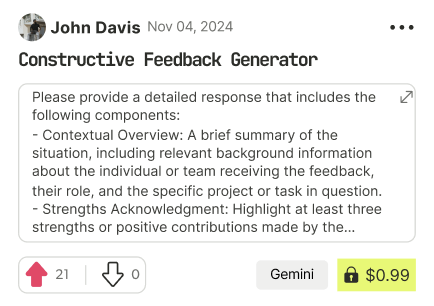
Find Powerful AI Prompts
Discover, create, and customize prompts with different models, from ChatGPT to Gemini in seconds
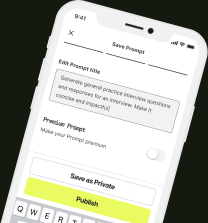
Simple Yet Powerful
Start with an idea and use expert prompts to bring your vision to life!